Quick Start Guide
Three lines, one picture
You need pip install musicalgestures and FFmpeg on your system;
the Installation Guide covers the optional extras. Then:
import musicalgestures as mg

v = mg.MgVideo(mg.examples.dance)     # a dance video ships with the package
v.motiongrams().show()
That draws motiongrams: images tracing where motion happens in the frame over time,
like a spectrogram for the body. The video is bundled, so this runs before you have any
footage of your own—mg.examples.dance and mg.examples.pianist are both there.
You can also run it in the browser with nothing installed:

The three you will use most
Most of what this toolbox gets used for is three calls. Everything further down this page is detail to come back for once these make sense.
v = mg.MgVideo(mg.examples.dance)

v.motion()                # motion video, plus QoM, CoM and AoM per frame as a CSV
v.motiongrams()           # where motion happened, over time
v.audio.spectrogram()     # the accompanying sound
Analysis methods return result objects rather than writing and forgetting, and .show()
displays them. Each is expanded under Basic Analysis Workflows below.
What a video knows about itself
v = mg.MgVideo(mg.examples.dance)
print(v.filename, v.duration, v.fps)   # .duration is seconds; .length is the frame count
Core Concepts
MgVideo Class
The MgVideo class is your main interface for video analysis:
# Load your own video
mv = mg.MgVideo('path/to/your/video.mp4')

# Or use preprocessing options
mv = mg.MgVideo(
    'path/to/video.mp4',
    starttime=10,      # Start at 10 seconds
    endtime=30,        # End at 30 seconds
    color=False,       # Convert to grayscale
    filtertype='Regular',  # Motion detection filter
    threshold=0.1      # Motion threshold
)
MgAudio Class
For audio-only analysis:
# Load audio from video or audio file
ma = mg.MgAudio('path/to/audio.wav')

# Or extract audio from video
mv = mg.MgVideo('video.mp4')
ma = mv.audio  # Get the audio component
Basic Analysis Workflows
1. Motion Analysis
Extract motion information from your video:
mv = mg.MgVideo(examples.dance)

# Perform motion analysis — returns MgVideo pointing to the motion video
motion_video = mv.motion()
motion_video.show()           # watch the motion video
mv.show(key='motion')         # equivalent shorthand via source MgVideo

# Motion data (QoM, CoM, AoM per frame) is saved as a CSV alongside the video
import pandas as pd
import os
csv_path = os.path.splitext(motion_video.filename)[0] + '.csv'
data = pd.read_csv(csv_path)
print(data.head())
2. Create Visualisations
Generate various visualisations:
mv = mg.MgVideo(examples.pianist)

# Motiongrams — returns MgList with [vertical_mgram, horizontal_mgram]
motiongrams = mv.motiongrams()
motiongrams[0].show()  # x-motiongram
motiongrams[1].show()  # y-motiongram
mv.show(key='horizontal')  # shorthand from source MgVideo

# Average image (blend of all frames)
average_img = mv.average()
average_img.show()

# Motion history
history = mv.history()
history.show()
Face anonymisation also returns a usable result object when exporting face-coordinate data:
blurred = mv.blur_faces(save_data=True, data_format='csv')
blurred.show(mode='notebook')
3. Audio Analysis
Analyse the audio component:
mv = mg.MgVideo(examples.pianist)

# Get audio object
audio = mv.audio

# Create waveform plot
waveform = audio.waveform()
print(f"Waveform plot: {waveform}")

# Generate spectrogram
spectrogram = audio.spectrogram()
print(f"Spectrogram: {spectrogram}")

# Extract audio descriptors
descriptors = audio.descriptors()
print(f"Descriptors: {descriptors}")
4. Pose Estimation
mv = mg.MgVideo(examples.dance)

# pose() defaults to the MediaPipe backend: fast on plain CPU, no CUDA-enabled
# OpenCV build needed, 33 landmarks with depth + visibility (best for one person).
pose_video = mv.pose()
pose_video.show(mode='notebook')

# OpenPose models ('body_25', 'coco', 'mpi') support multi-person analysis but are
# slow without a CUDA-enabled OpenCV build:
pose_video = mv.pose(model='mpi', device='gpu', downsampling_factor=2)
On first use, pose estimation downloads the requested model weights if they are not already present (MediaPipe weights by default).
5. Pose segment statistics
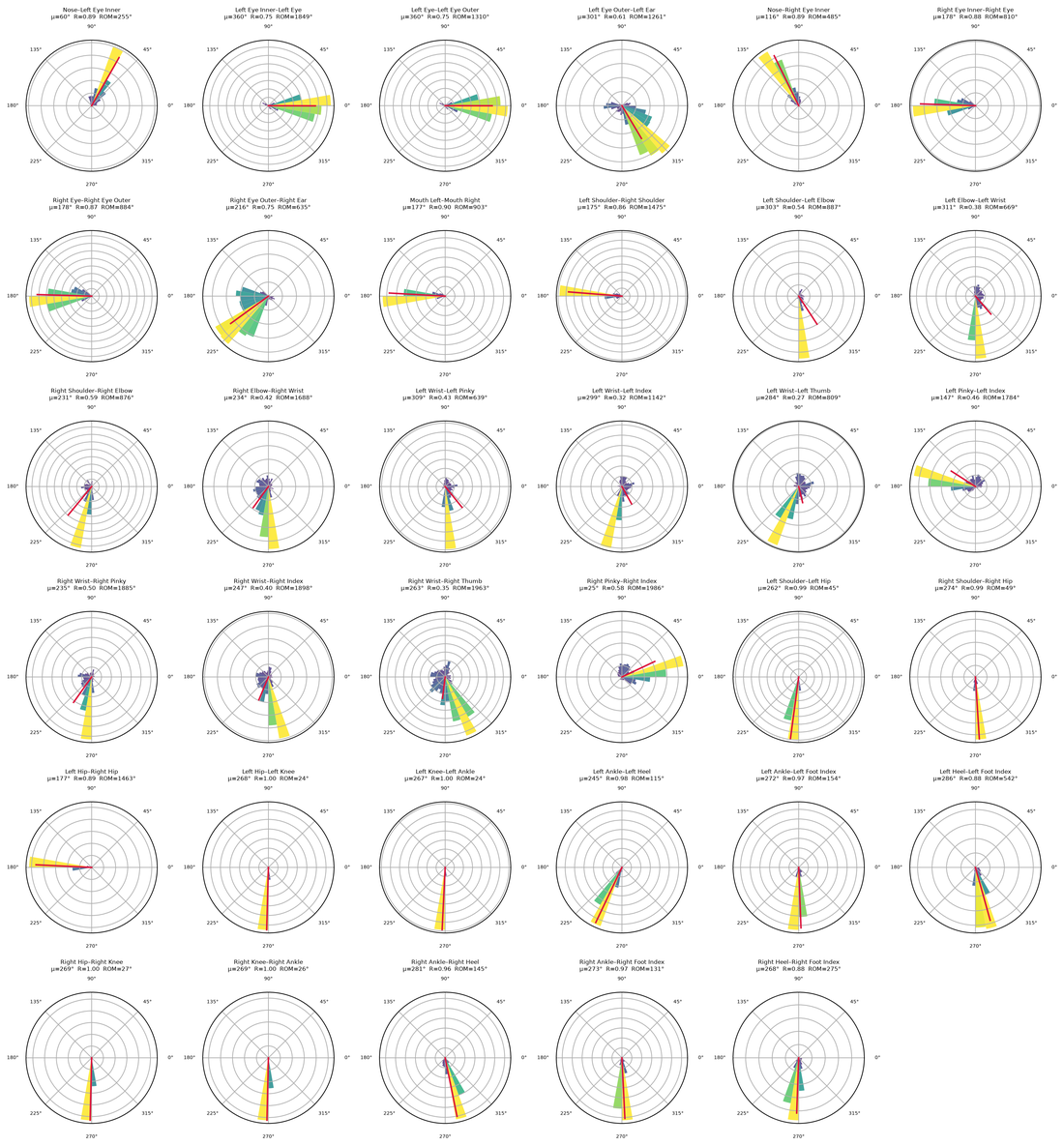
pose_segments() draws a polar rose plot and circular statistics for each body segment (the bone between two joints):
mv = mg.MgVideo(examples.dance)
mv.pose_segments().show()         # reuses cached pose keypoints if available
6. Audio–motion tempo similarity
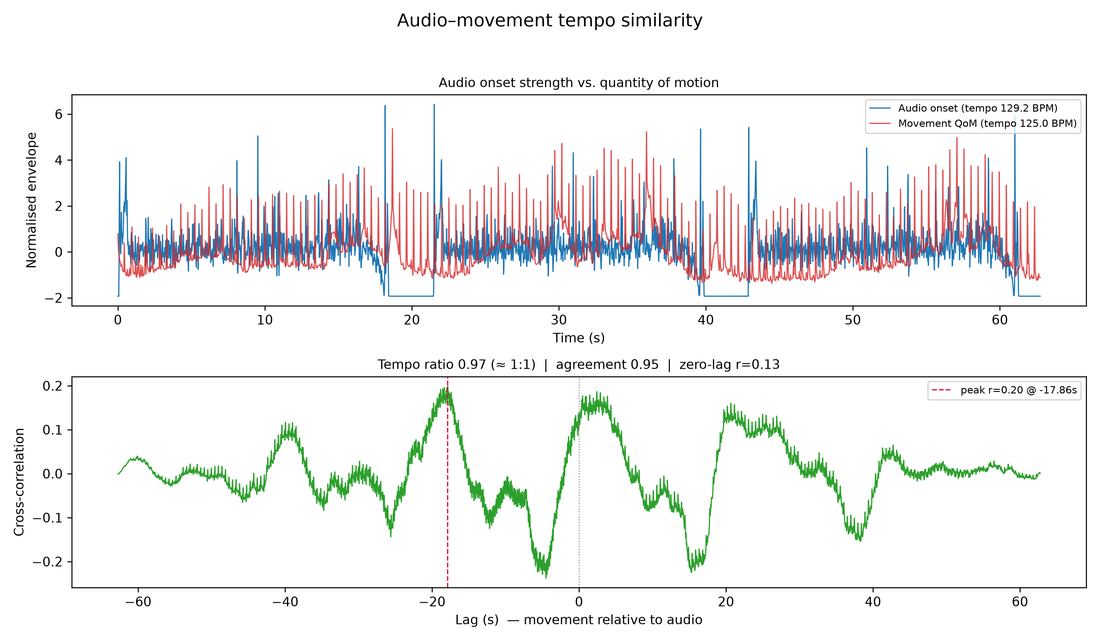
tempo_similarity() compares the audio tempo with the motion tempo and cross-correlates the two envelopes:
mv = mg.MgVideo(examples.dance)
ts = mv.tempo_similarity()
ts.show()
print(ts.data['audio_tempo_bpm'], ts.data['motion_tempo_bpm'])
See the dedicated Audio-Video Processing & Analysis page for the full suite (phase synchrony, structure comparison, body–audio and dynamics coupling).
Options and performance
Neither of these is an analysis. They change how the analyses above run, and are here rather than among them because a reader meeting the toolbox for the first time does not need either.
Optional GPU acceleration
mv = mg.MgVideo(examples.dance)

# CPU is the default for flow and blur_faces.
dense_cpu = mv.flow.dense()
blur_cpu = mv.blur_faces()

# Opt in to CUDA acceleration (falls back to CPU automatically).
dense_gpu = mv.flow.dense(use_gpu=True)
sparse_gpu = mv.flow.sparse(use_gpu=True)
blur_gpu = mv.blur_faces(use_gpu=True)

# Check CUDA availability reported by OpenCV.
print(mg.get_cuda_device_count())
Resampling (frame rate / speed)
resample() returns a new MgVideo (the original is untouched) re-timed by frame rate, playback speed, or frame decimation:
mv = mg.MgVideo(examples.dance)

mv25 = mv.resample(fps=25)        # retime to 25 fps (duration-preserving)
fast = mv.resample(speed=2.0)     # 2× faster, video + audio in sync
mv25.show()
Working with Your Own Videos
Supported Formats
MGT-python works with most common video formats: - MP4, AVI, MOV, MKV - Audio: WAV, MP3, FLAC, etc.
Basic Processing Pipeline
# 1. Load and preprocess
mv = mg.MgVideo(
    'my_video.mp4',
    starttime=5,       # Skip first 5 seconds
    endtime=60,        # Use only first minute
    color=False        # Grayscale for motion analysis
)

# 2. Perform motion analysis
motion = mv.motion()

# 3. Create visualizations
motiongrams = mv.motiongrams()
average = mv.average()

# 4. Analyze audio
audio_analysis = mv.audio.spectrogram()

print("Analysis complete")
Understanding Output Files
MGT-python creates several types of output files:
Video Files
*_motion.*- Motion video (same container as the source: an mp4 in gives_motion.mp4)*_history.*- Motion history video (same container as the source)
Image Files
*_average.png- Average of all frames*_mgh.png- y-motiongram*_mgv.png- x-motiongram
Data Files
*_motion.csv- Numerical motion data*_descriptors.csv- Audio feature data
Working Directory
By default, outputs are saved in the same directory as your input video. Use target_name on individual methods to control the output path for a specific result.
Interactive Analysis
Jupyter Notebooks
MGT-python works great in Jupyter notebooks:
import musicalgestures as mg
import matplotlib.pyplot as plt

# Load video
mv = mg.MgVideo(mg.examples.dance)

# Create motion analysis
motion = mv.motion()

# Display results inline
plt.figure(figsize=(12, 4))
mv.show()  # Shows the video player
Batch Processing
Process multiple videos:
import glob

video_files = glob.glob('videos/*.mp4')

for video_file in video_files:
    print(f"Processing: {video_file}")
    mv = mg.MgVideo(video_file)

    # Perform analysis
    motion = mv.motion()
    motiongrams = mv.motiongrams()

    print(f"Completed: {video_file}")
Next Steps
Now that you know the basics, explore more advanced features:
- Loading & Showing - How to load videos and display results
- Preprocessing - Trim, crop, rotate, and adjust videos
- Video Analysis - Motion analysis, optical flow, pose estimation
- Audio Analysis - Waveforms, spectrograms, and audio features
- Working with Results - MgFigure, MgImage, MgList, and chaining
- API Reference - Complete method documentation
Common Issues
Video does not load
# Check if file exists and is readable
import os
video_path = 'my_video.mp4'
if os.path.exists(video_path):
    print(f"File found: {video_path}")
else:
    print(f"File not found: {video_path}")
FFmpeg Errors
If you get FFmpeg-related errors, ensure FFmpeg is installed:
ffmpeg -version
See the Installation Guide for help with FFmpeg setup.
Memory Issues with Large Videos
For large videos, consider:
# Process shorter segments
mv = mg.MgVideo('large_video.mp4', starttime=0, endtime=30)

# Or thin out the frames at load time (keep 1 of every skip+1 frames)
mv = mg.MgVideo('large_video.mp4', skip=2)

# Or re-time an already-loaded video to a lower frame rate
mv = mg.MgVideo('large_video.mp4').resample(fps=15)
The comprehensive User Guide covers the rest of the toolbox.